Outlook Email Settings: Name and Email
1. Add your Google Workspace email account selecting Accounts Settings under the File > Info menu.
2. In the new "Account Settings" box that appears, click on "New".
3. A dialog box will ask for your email. Choose "Let me set up my account manually" under Advanced options and click Connect.
4. On the next screen, choose "Google".
Outlook Email Settings: Server Settings
5. Under Incoming mail, enter imap.gmail.com and set the port to 993. Under Outgoing mail, enter smtp.gmail.com and set the port to 465. Both Encryption methods should be set to SSL/TLS. The account type should already be set to IMAP. Click Next.
6. Enter your Google Workspace password. Click Connect.
7. A new window will appear with the Google logo. Enter in your Google Workspace email and click Next.
8. Enter your Google Workspace password. Click Sign in. Depending on your Google account settings, you may need to verify through your phone that you are allowing the connection between Outlook and Google to happen.
9. You should be all set! Click Done.
Editing Outlook Settings for an Existing Account
If you want to edit an existing email account's settings, here are some guidelines.
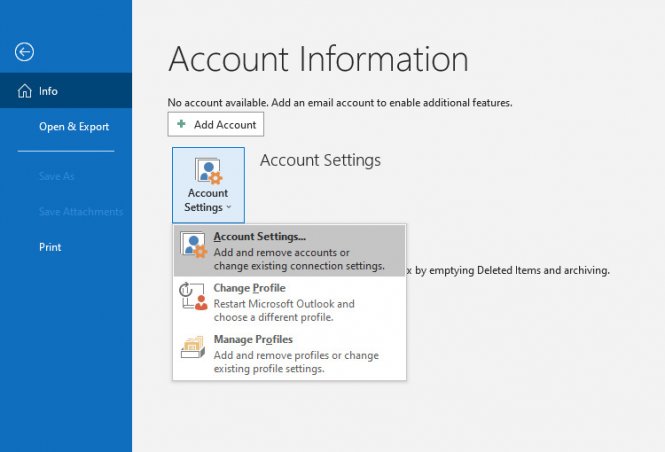
1. Access your email account settings by selecting Accounts Settings under the File > Info menu.
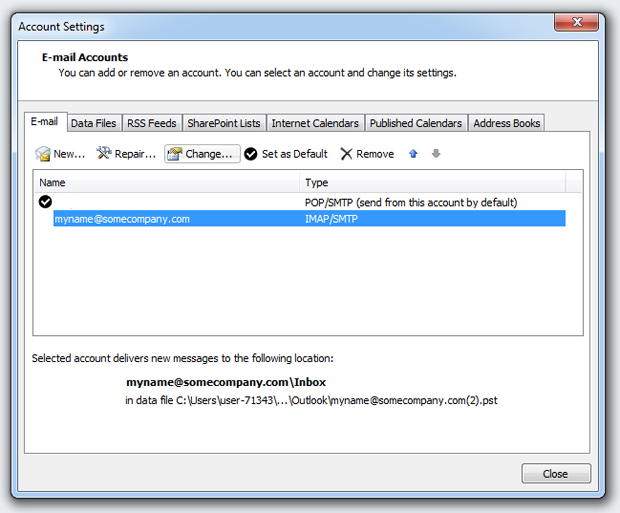
2. Select your Google Workspace account and click "Change ... "
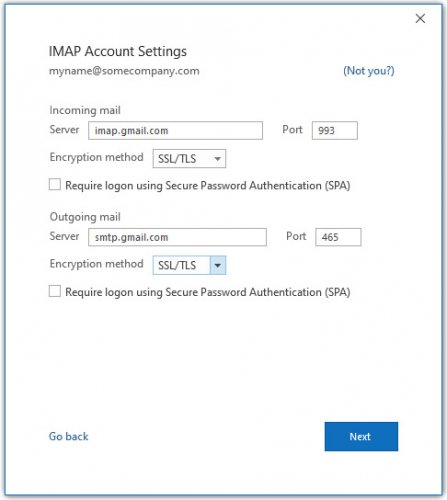
3. Under Server Information, edit the server names and port numbers. Make sure the Encryption method is set to SSL/TLS. Click Next.
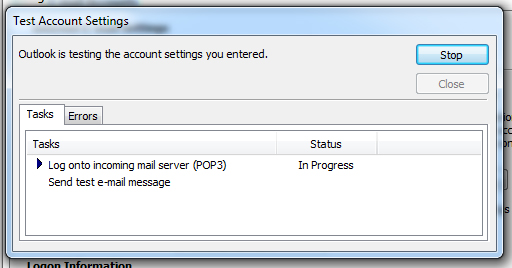
4. Outlook will run a test to check to make sure your settings are correct. Once it finishes, click Close here and Next on the Add New Account window.
You should be all set!